 Trawpie
The board is where a workspace lives. Read it like a timetable: find a person on the left, follow their row to the week, and their tasks are there.
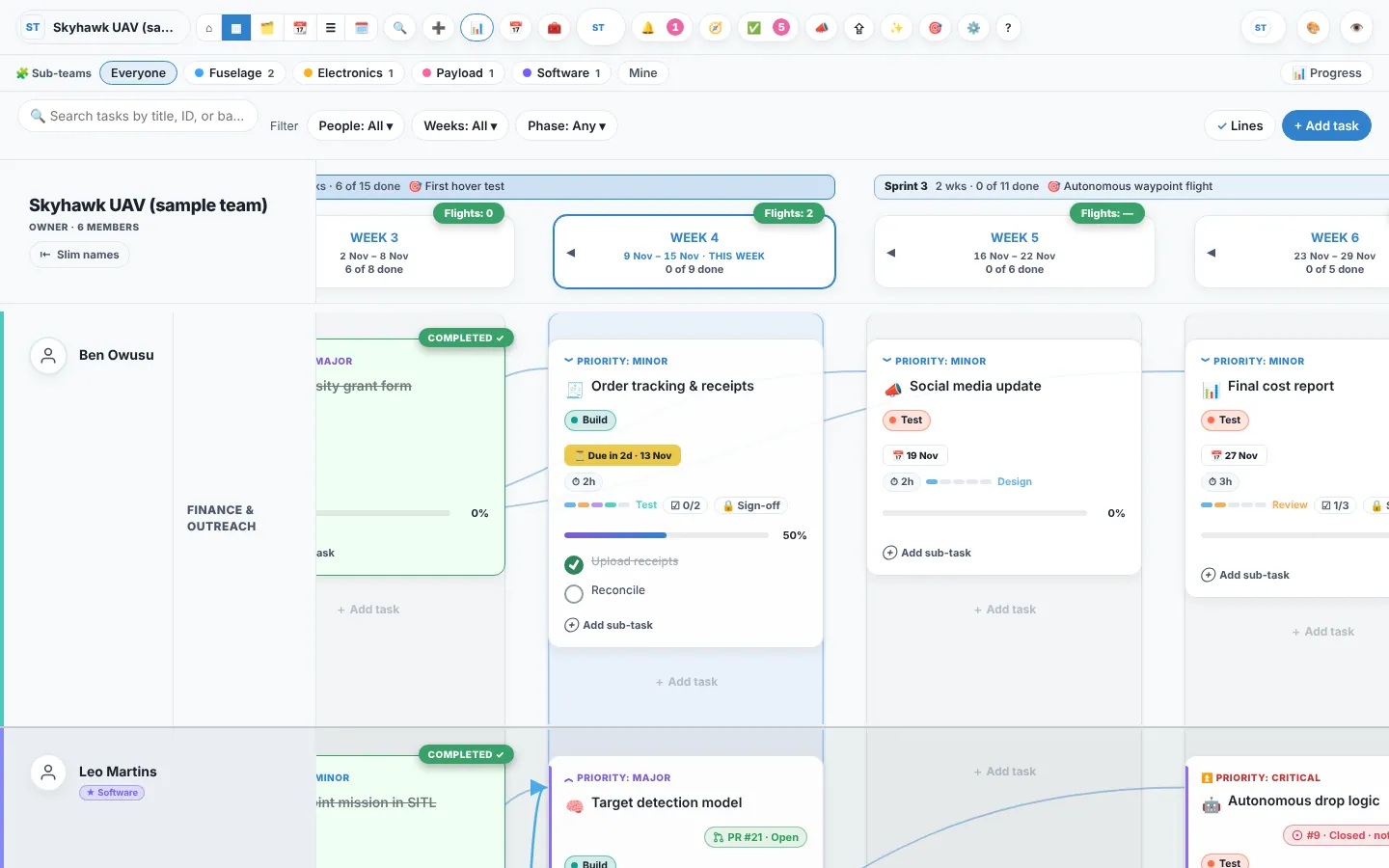
Rows: people and categories
Each person has a row, split into their categories. Lines run from each category to its tasks, so you can follow them across the weeks.
Columns: weeks
- Weeks have real dates. Set when Week 1 starts once; every later week follows, 7 days apart.
- THIS WEEK is outlined, and 🎯 Today scrolls back to it.
- Each week can show a weekly metric badge: the one number that matters that week.
- A Backlog column on the left holds ideas not planned into a week yet.
Weeks as lanes
Each week is its own lane, running down past everyone, with how much of it is done in its header (“3 of 9 done”). This week’s lane is tinted.
Lines between cards
- Every task has a line from its own category, in whichever week it sits, so a task added to Week 3 still joins its row.
- A solid light-blue arrow joins a task to its carried-over copy in the next week. It’s the only line from one week to another.
- An orange dotted line joins a task to a supporting copy in a helper’s row.
- Cards are slightly see-through, so you can follow a line passing behind one. Turn the lines off with Lines in the filter bar.
The filter bar
Above the board: search, then People, Weeks and Phase to narrow what shows (“Just me”, “This week and next 2”), Clear, Lines and + Add task.
The side panel
Click a card and its details open on the right; close it, or select nothing, and the board takes the full width again. Want the panel open all the time? Press 👁️ Show panel: it stays until you hide it. ⇪ Export and ? Help at the top hold sharing, exports, the calendar, imports and tips.
Doing things
- Click a card to open it in the editor.
- Right-click (or press and hold on a phone, or the ⋮ on a card) for the actions that fit what you’re pointing at: a card, a cell, a week or a person.
- Drag a card to move it; hold Alt to copy.
- Ctrl+K searches everything, including actions like “Slim names on the board”.