 Trawpie
A task is a card on the board. Click one and its editor opens on the right (on a phone, it slides up from the bottom). Everything saves as you type, for everyone.
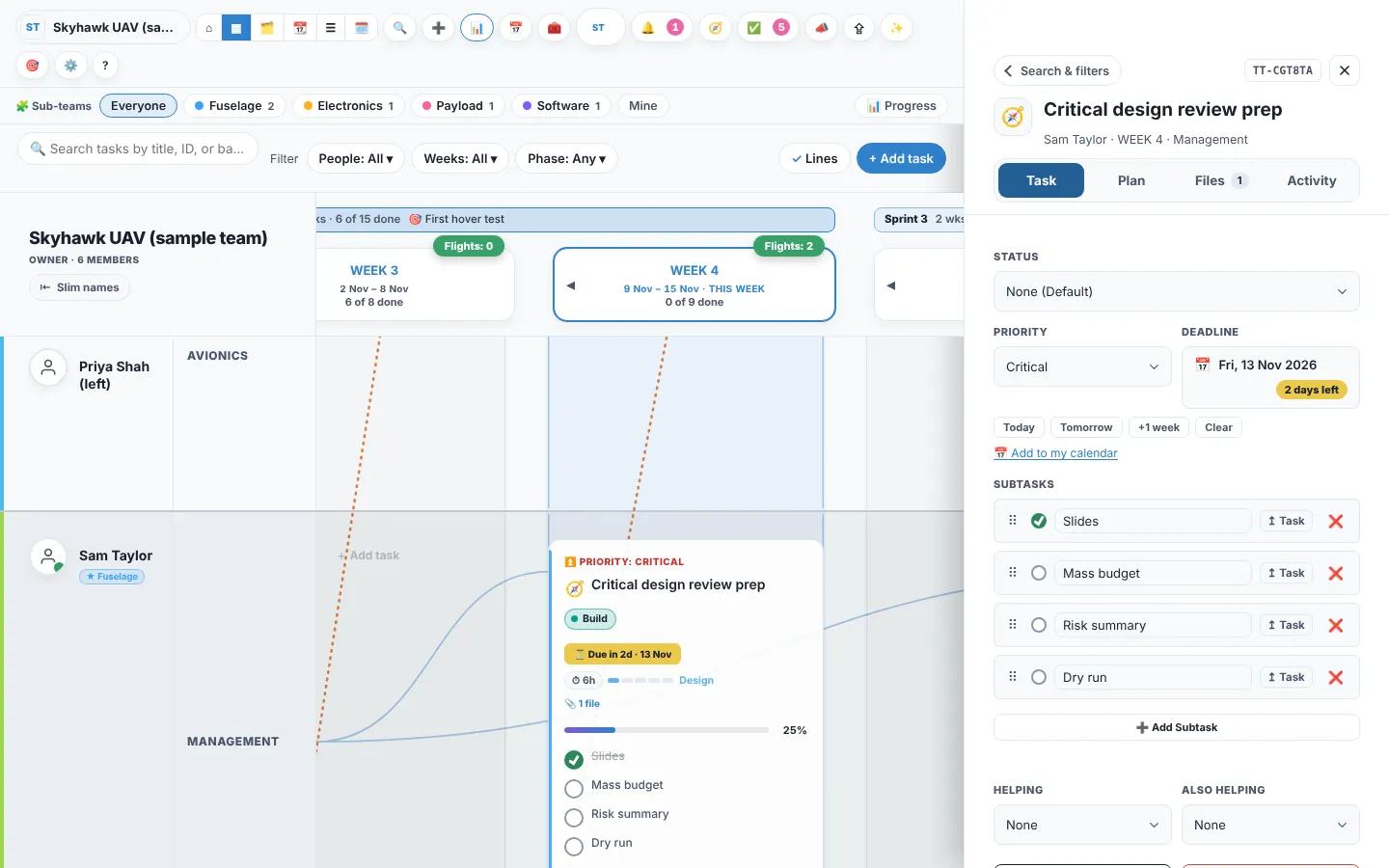
The four tabs
| Tab | What’s there |
|---|---|
| Task | Status, priority, deadline, progress, sub-tasks and who’s helping. |
| Plan | Phase, stage and sign-off, version and branch, decision matrix, start date, effort, “waits on” and repeat. |
| Files | Google Drive and OneDrive files, links, GitHub issues, linked parts and papers, and the lab notebook. |
| Activity | Comments with @mentions, and the full change history. |
Sub-tasks and progress
Break a big job into a checklist. Drag sub-tasks to reorder them. When a task carries over, ticked sub-tasks come with it.
Helpers and “waits on”
Add up to two helpers: the task then shows in their Supporting row too. Link tasks that must finish first with Waits on; the Gantt draws an arrow and the waiting task is flagged until the other is done.
Deadlines and priority
Deadlines drive late flags, the timeline, reminder emails and the Monday digest. Priority runs Minor, Major, Critical and Blocker. Both show on the card.
Files
Attach from Google Drive, or paste a OneDrive or SharePoint share link. The file stays in your drive; the task keeps the link. If a file can’t be opened any more, the card says so and offers a one-click re-link.
Comments and history
Talk about the task where the task lives. Type @name to notify someone. Every change is in the history, and Ctrl+Z undoes your own last change.